Sunday, 13 July 2014

Basic Linux Commands

Starting a Terminal

In Unity

Unity is the default desktop environment used as of 11.04. Where systems are not ready for Unity they revert to GNOME which is also used in previous releases such as Ubuntu 10.04 LTS (Lucid), see next sub-section.
The easiest way to open the Terminal is to use the 'search' function on the dash. Or you can click on the 'More Apps' button, click on the 'See more results' by the installed section, and find it in that list of applications. A third way, available after you click on the 'More Apps' button, is to go to the search bar, and see that the far right end of it says 'All Applications'. You then click on that, and you'll see the full list. Then you can go to Accessories -> Terminal after that. So, the methods in Unity are:
Dash -> Search for Terminal
Dash -> More Apps -> 'See More Results' -> Terminal
Dash -> More Apps -> Accessories -> Terminal
Keyboard Shortcut: Ctrl + Alt + T

Complete Guide On How To Install Kali Linux In VMware

This tutorial will walk you through the difficult process of installing Kali Linux in VMware Player, a free virtual machine manager that can be downloaded from www.vmware.com.

Step 1:

First we need to download Kali from http://kali.org/downloads/. If you have a 64-bit capable computer , then you probably will want the 64-bit version of Kali for performance reasons.
Expand the drop down menu’s to find the version you need. Select the 64-bit version ONLY if you have a 64-bit computer.


step 1


Saturday, 12 July 2014

Video Compressor

How to compress large video files without losing quality using Handbrake: 


Large video files are slow to upload and download.  One of the most popular tools that can significantly shrink the file size without losing quality is Handbrake.  It is popular due to three reasons:
  • It can convert video from nearly any format, e.g. .wmv – Windows Media Video File, .avi – Audio Video Interleave File, .m4v, .mov, etc.
  • It is free and Open Source
  • It works on Windows, Mac and Linux

This tutorial illustrates how to compress a video file for the web on a Windows machine. The sample file I used to compress was called WL-Video.wmv and its original size was 39.0 MB.  After compression the file size was down to 4.40 MB.  The compressed video format is MP4 as it is the most supported video format on the web. Depending on your original video file, following the instructions in the tutorial, the file size may still be reduced if your video file is already MP4 format.

Download and install Handbrake if you do not have it

  1. Download Handbrake at http://www.handbrake.fr
  2. Double click the downloaded file to install Handbrake by following the instructions on screen.

Compress videos
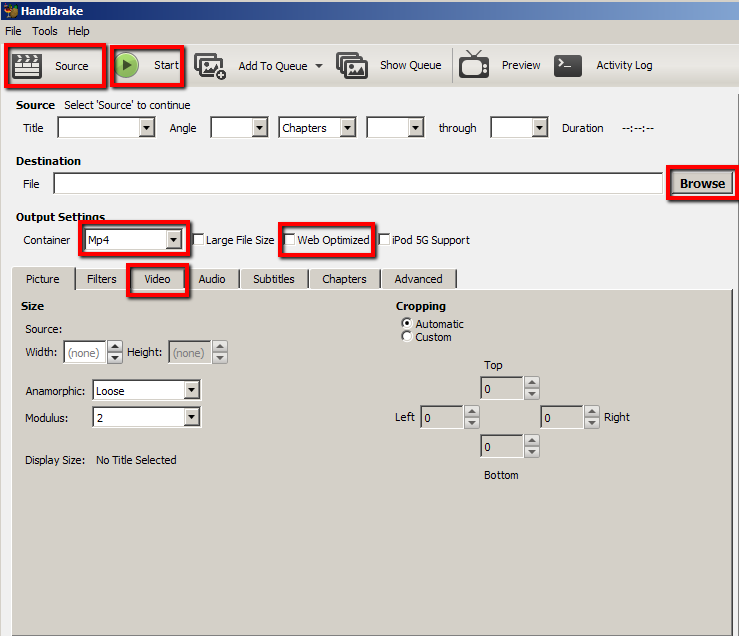
3. Launch Handbrake.  Do not be put off by all the buttons and options available – you usually only need to use a few of them.
handbrake-0
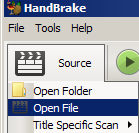
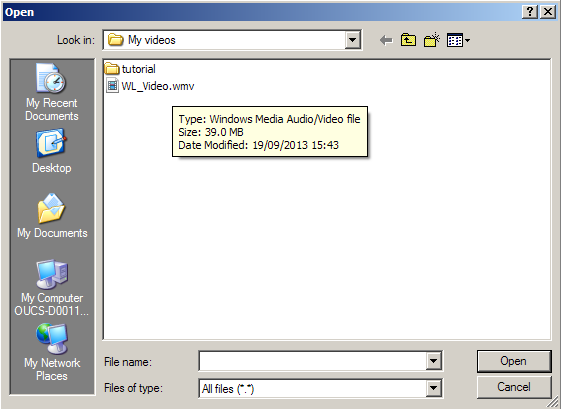
4. Click Source > Open File to select the video you want to compress.  In this tutorial, I select WL_Video.wmv and then click Open.  You can see the original size was 39MB.
handbrake-1
handbrake-10
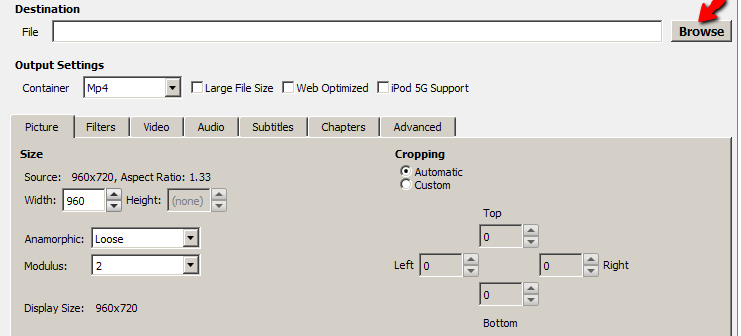
5. In Handbrake, under Destination you can decide where the compressed file is saved by clicking Browse.  By default, it is saved in the same folder where the original file is.  You can change to other location if necessary.   You are required to provide a name for the compressed file.
handbrake-18
6. For Output Settings, choose Mp4 if it is not selected and select Web Optimized.
handbrake-4
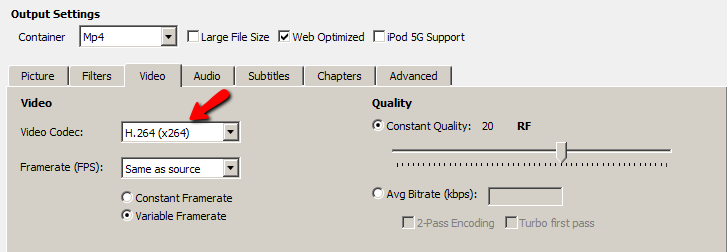
7. Click on Video and make sure that H.264(X264) is selected.
handbrake-5
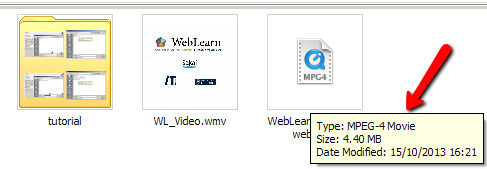
8. Click Start to compress the video.  The green Start button will become red Stop button until the compression is complete.   When it is back to green.  You are ready to view the compressed video.  The original video file was reduced from 39.0MB to 4.40MB.  The compressing process for this small file took around 20 seconds.  If it is a very large file, it can take much longer to compress.
handbrake-12Note: 
This tutorial aims to introduce the basic features in Handbrake.

Microsoft/Web

Install WordPress for Windows

WordPress is one of the most popular open-source blogging, publishing and content management systems, with a deep plugin and theme architecture that allows for limitless possibilities. WordPress also runs great on the Microsoft Web Platform. Microsoft is teaming up with the WordPress Community to make using WordPress on Windows even easier and Microsoft along with its hosting partners is working to make hosting WordPress on Windows a great choice for everyone.
The Microsoft Web Platform Installer will download any
pre-requisites and then install WebMatrix and WordPress
for you. Just click Install and we’ll handle the rest.


WordPress and WebMatrix


Get Started with WordPress and WebMatrix 


Microsoft WebMatrix makes  it easy for anyone to create a WordPress site. WordPress available from the Web Application Gallery is fully tested to run on WebMatrix. Customize your site easily and then publish it on the internet from a wide choice of hosting service providers.


Create
Customize
Publish
  • WebMatrix makes creating a WordPress site easy. WebMatrix will download, install and configure the latest version of WordPress for you automatically.
  • WebMatrix provides everything you need including the web server, MySQL, and PHP. It also includes our URL Rewrite module for “Pretty Permalinks” in WordPress and WinCache to ensure your WordPress site runs fast on Windows.
  • By using the same stack on your development desktop that you’ll use on the server that hosts your clients’ site, the process of going live is painless and worry free.
  • WebMatrix lets you customize your WordPress site. The lightweight editor supports HTML, CSS and ASP.NET and makes you more productive with features such as color coding and tag completion.
  • WebMatrix provides editing capabilities for your SQL Server database allowing you to modify your schema or edit data directly if needed.
  • WebMatrix provides a Search Engine Optimization (SEO) report that crawls your local site. WebMatrix and gives you specific feedback to ensure your site is easily indexed by all the major search engines.
  • WebMatrix makes it easy to publish your site to a hosted server. WebMatrix supports the standard FTP and Secure FTP protocols as well as Microsoft’s WebDeploy protocol.
  • WebDeploy makes publishing even easier by automatically configuring your server first as well as smartly deploying only the files that have changed for any updates. WebDeploy can even synch your development machine with your live site.
  • Best of all WebMatrix includes aHosting Gallery with great offers for hosting on Windows. Get the best deals for hosting WordPress on Windows right inside WebMatrix itself.

New to WordPress?

Microsoft and the WordPress Community are teaming up to provide definitive and deep guidance on the installation, configuration and tuning of WordPress on the Microsoft Web Platform. Detailed technical information for installing and tuning WordPress on IIS is available on the WordPress Codex.

New to PHP on Windows and IIS?

There is a wealth of information for learning more about running WordPress or any PHP-based website on the Microsoft Web Platform including features and information on FastCGI, WinCache, PHP Manager and running PHP applications in our cloud platform, Azure. Plus links to detailed articles for users who want to get the ultimate performance from their WordPress sites on Windows. Visit our PHP on Windows page to learn more.


Starting with LINUX


Beginner's guide to Linux: where to start
Linux is a powerful and attractive desktop operating system


What is Linux?


Linux is an operating system, in the same way that Windows, Mac OS X, iOS and Android are all operating systems.
Essentially, what an operating system does is provide a platform for everything else on your computer to run on top of.
This platform is made up of lots of different parts. Some parts are responsible for making the hardware work, others for displaying the user interface, and still other parts for ensuring that applications can work with the hardware and each other. Just like Windows etc, Linux performs all of these functions.
You may be asking, "If Linux does all the same things that Windows or Mac OS X does, why bother switching?". The answer is that Linux has its own way of doing things, and for some people, the Linux way suits them better.